So you want to Build A Computer?

Welcome Let's get Started

Building computers is a rewarding hobby that allows you to create a machine tailored to your specific needs. Whether you're a gamer, a content creator, or just someone who loves technology, building your own PC can be a fun and educational experience.

In this guide, we'll walk you through everything you need to know about building computers, from choosing the right components to assembling them and troubleshooting common issues.
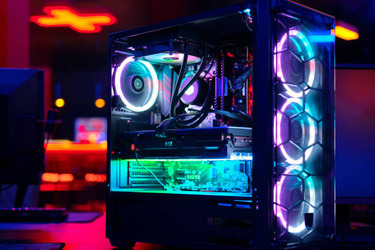
Custom PC
A fully customized PC with RGB lighting.

Why Build a Computer?

Building your own computer has several advantages over buying a pre-built one. Here are some reasons to consider building your own PC:

  • Customization: You can choose every component to match your specific needs, whether it's for gaming, video editing, or general use.
  • Cost-Effective: Building your own PC can often be cheaper than buying a pre-built one, especially if you shop for deals. On average, DIY builders save 20-30% compared to pre-built systems.
  • Learning Experience: Building a computer teaches you about hardware and how computers work, which can be useful for troubleshooting and upgrades.
  • Pride and Satisfaction: There's a sense of accomplishment that comes with building something yourself.
  • Better Performance: By selecting high-quality components, you can build a PC that outperforms pre-built systems at the same price point.

Did You Know? According to a 2022 survey, 65% of PC builders reported higher satisfaction with their custom-built systems compared to pre-built ones. Additionally, 80% of builders said they would recommend building a PC to others.

Why Build
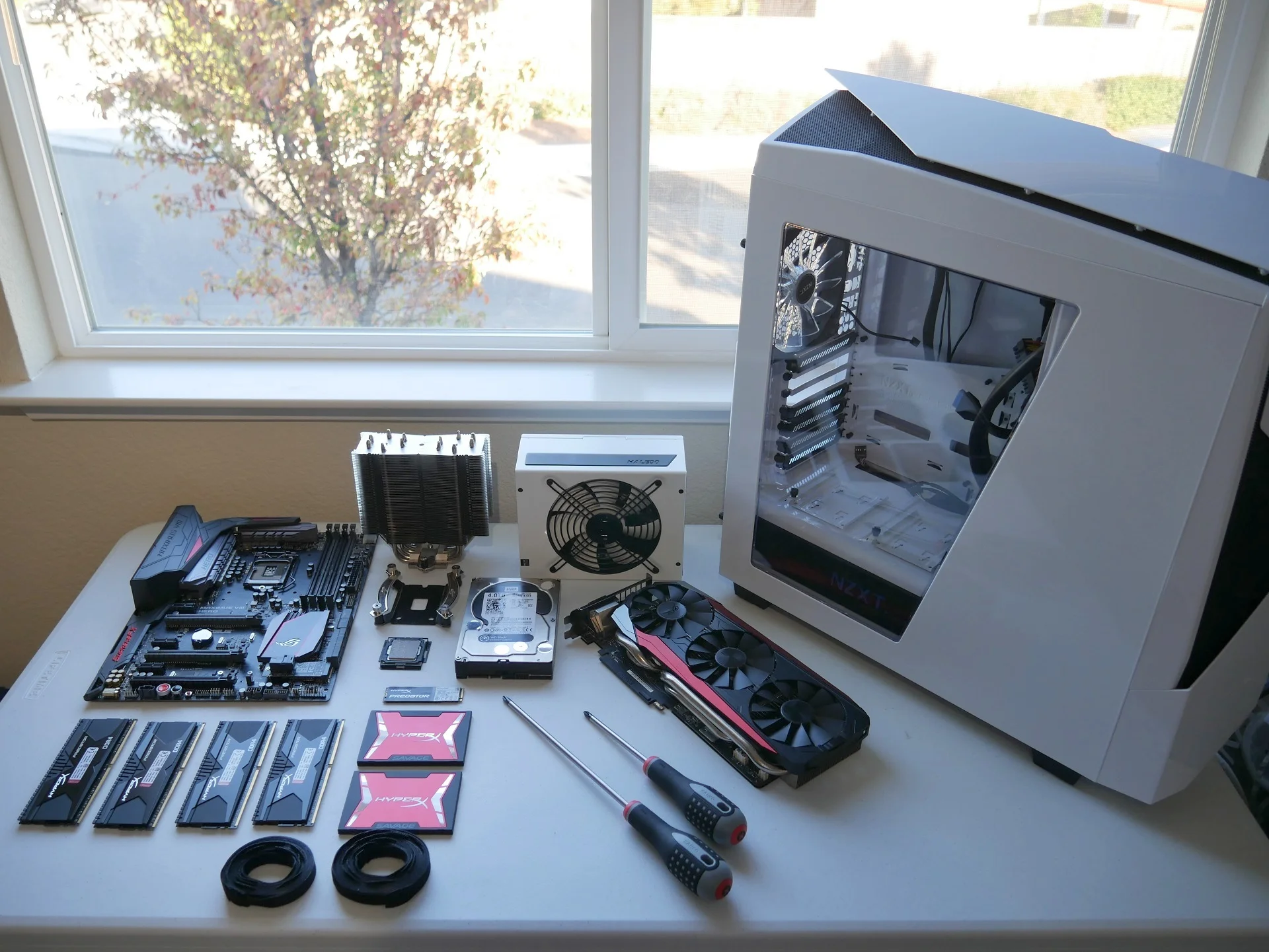
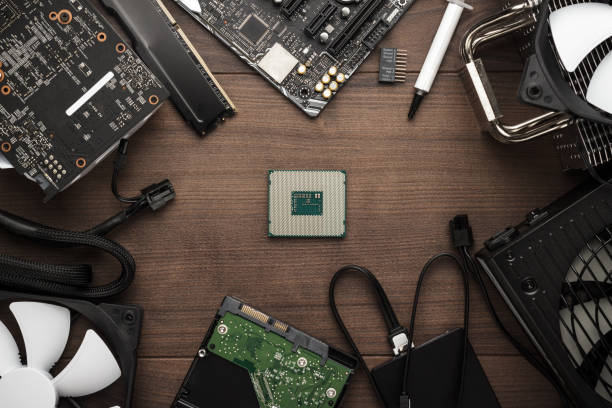
Assorted Computer Components.

Components and Their Role in a PC

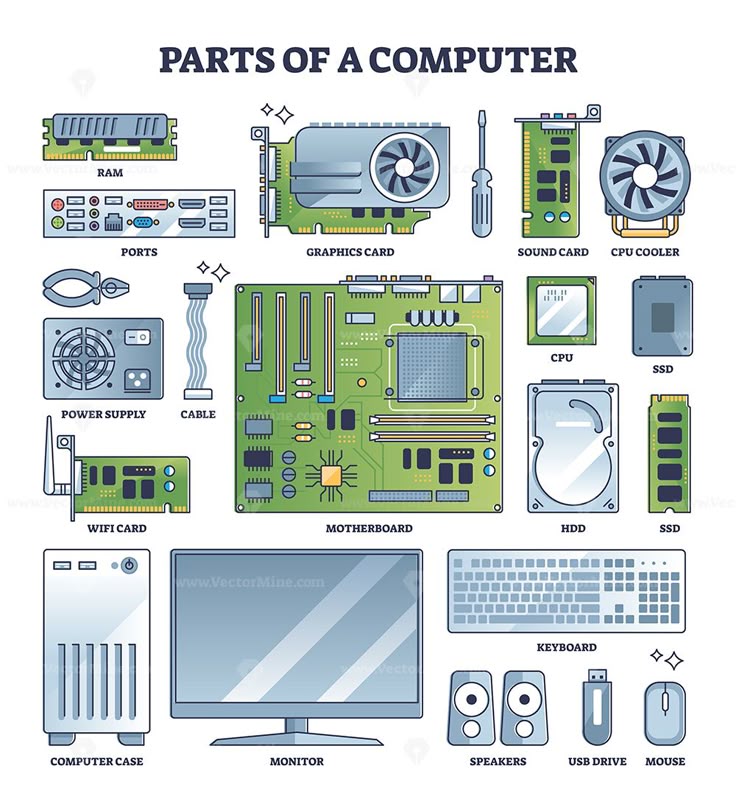
Understanding the role of each component is key to building a successful PC. Here's a breakdown of the main components:

  • CPU (Central Processing Unit): The brain of the computer, responsible for executing instructions.
  • GPU (Graphics Processing Unit): Handles rendering images, video, and animations. Essential for gaming and graphic design.
  • Motherboard: The main circuit board that connects all components.
  • RAM (Random Access Memory): Temporary storage for data that the CPU is actively using.
  • Storage (SSD/HDD): Stores your operating system, applications, and files.
  • Power Supply: Provides power to all components.
  • Case: Houses all components and provides cooling and protection.
PC Components
Key components of a computer.

Where to Build

Choosing the right location to build your computer is crucial. You need a clean, well-lit, and static-free workspace. Here are some tips for setting up your build area:

  • Clean and Organized: Make sure your workspace is free of dust and clutter. A clean environment reduces the risk of damaging your components.
  • Static-Free: Use an anti-static mat or wrist strap to prevent static electricity from damaging sensitive components.
  • Good Lighting: Proper lighting is essential for seeing small screws and connectors clearly.
Workspace
A clean and organized workspace for building PCs.

How to Build a Computer

Building a computer involves several steps. Here's a detailed, step-by-step guide to help you through the process:

  1. Choose Your Components

    Select a CPU, GPU, motherboard, RAM, storage, power supply, and case that meet your needs. Ensure compatibility between components (e.g., the CPU socket must match the motherboard). Research benchmarks and reviews to get the best performance for your budget.

    Choose Components
    Selecting the right components for your build.
  2. Prepare Your Workspace

    Set up a clean, static-free area with good lighting. Use an anti-static mat or wrist strap to prevent static electricity from damaging sensitive components. Gather all necessary tools, such as screwdrivers, cable ties, and thermal paste.

    Prepare Workspace
    A clean and organized workspace for building PCs.
  3. Install the CPU and Cooler

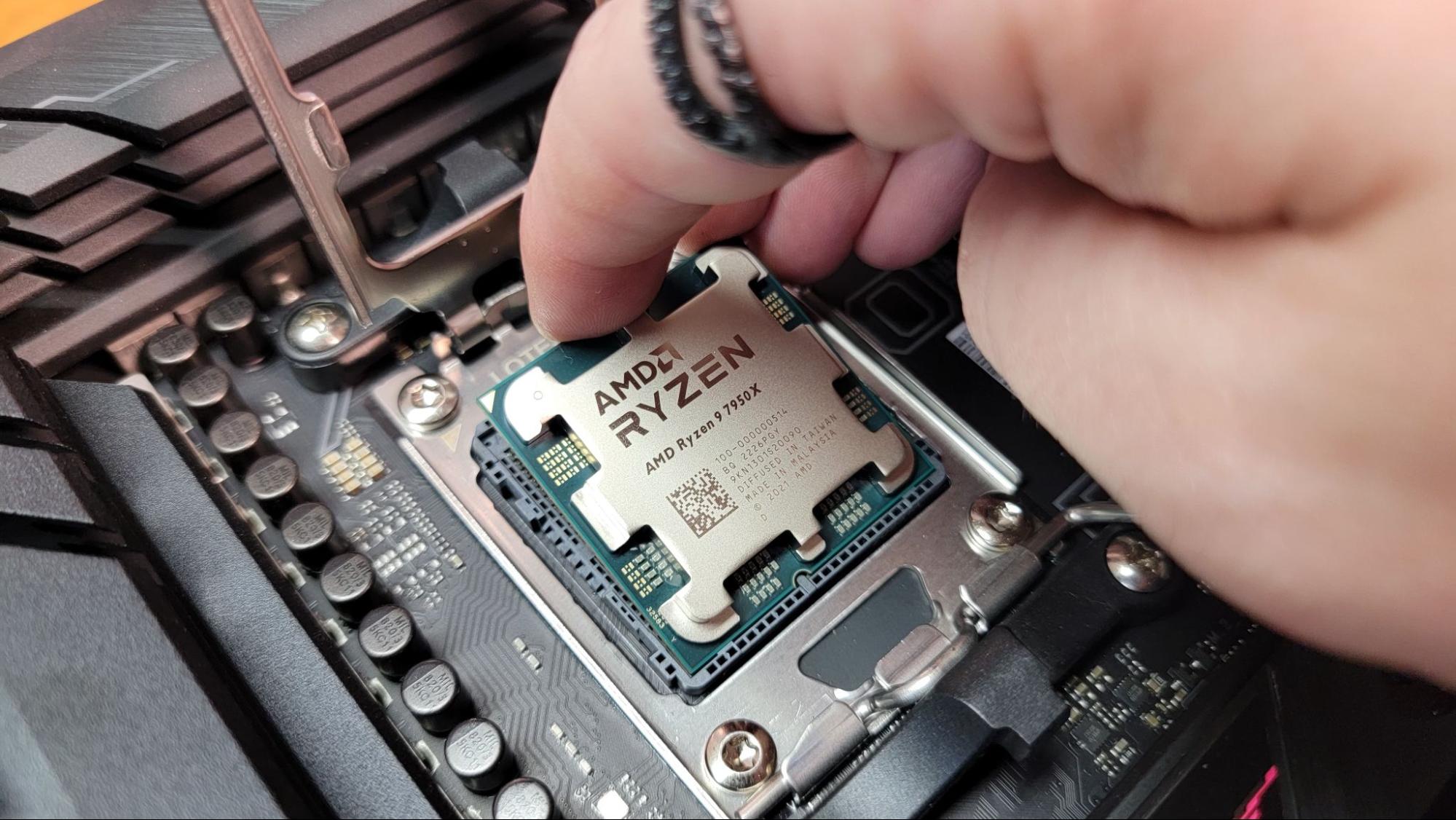
    Carefully place the CPU into the motherboard socket, aligning the notches. Secure it by lowering the retention arm. Apply thermal paste (if not pre-applied) and attach the CPU cooler, ensuring it’s firmly mounted.

    Install CPU
    Installing the CPU and cooler onto the motherboard.
  4. Install RAM

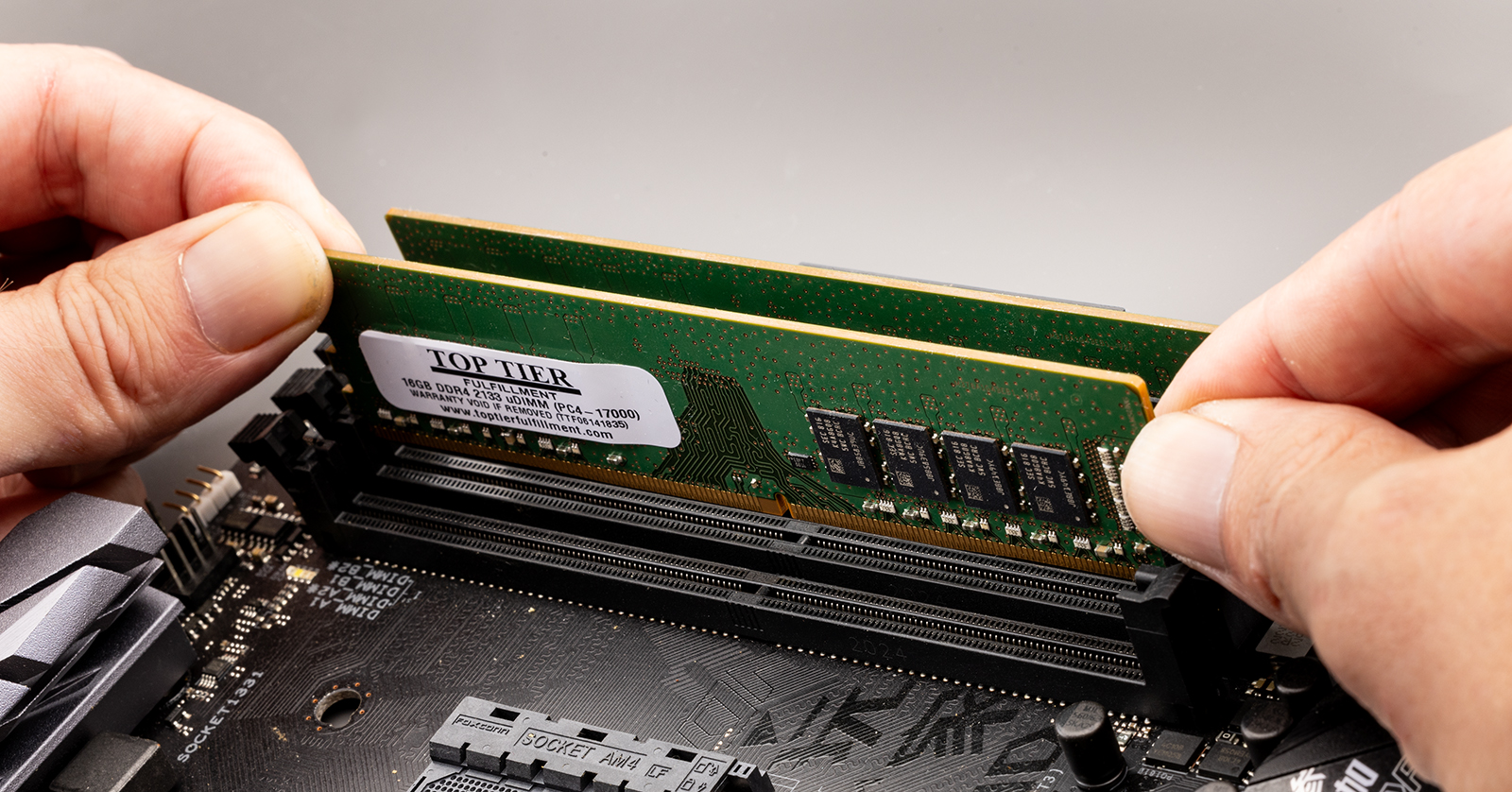
    Insert the RAM sticks into the appropriate slots on the motherboard. Open the clips, align the notch on the RAM stick with the slot, and press down firmly until the clips snap into place. For dual-channel performance, use the recommended slots (usually A2 and B2).

    Install RAM
    Inserting RAM sticks into the motherboard.
  5. Install the Motherboard

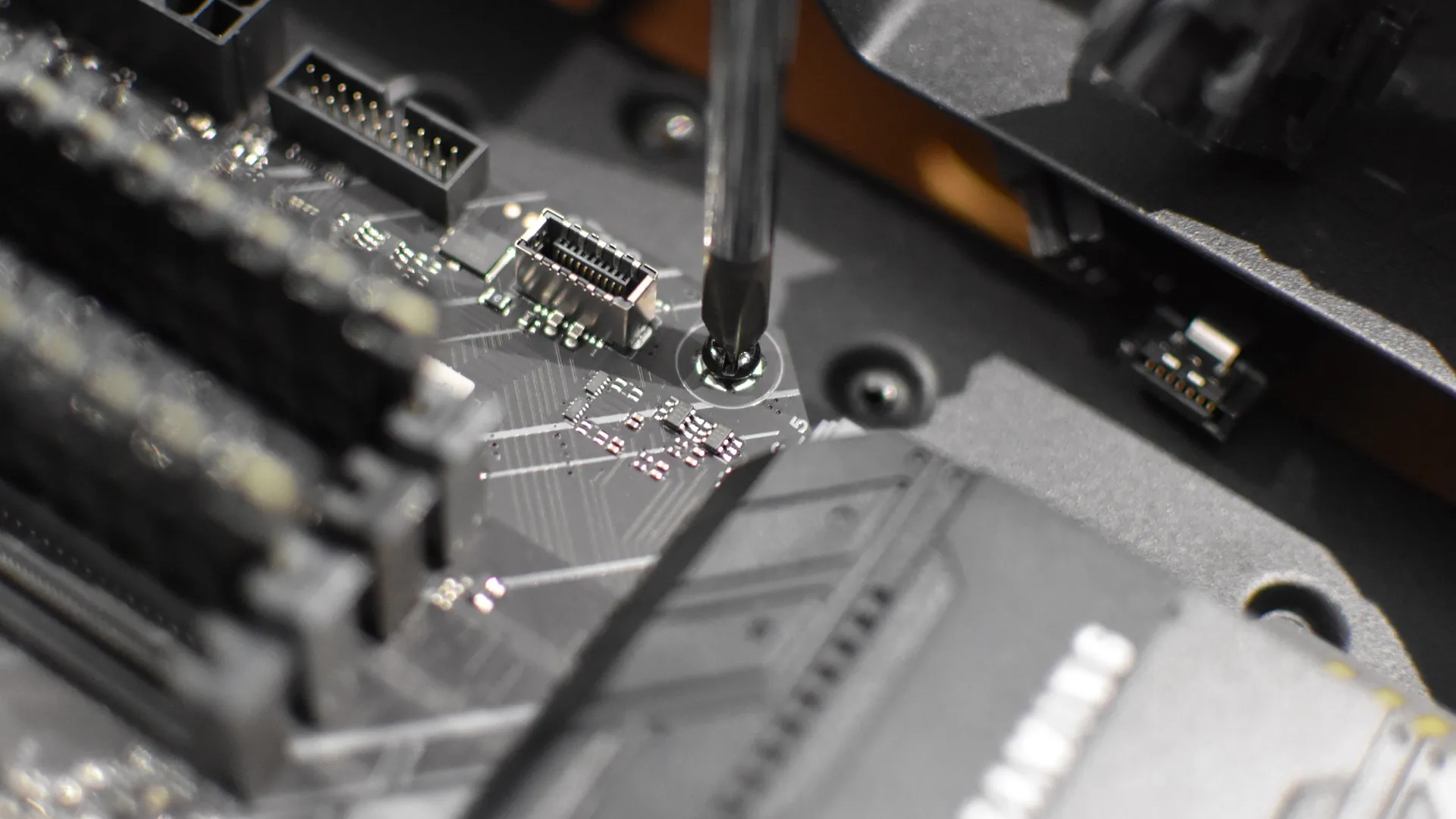
    Secure the motherboard inside the case using standoffs. Align the I/O shield with the case’s rear cutout and screw the motherboard into place. Connect the front panel connectors (power switch, reset switch, LEDs) to the motherboard.

    Install Motherboard
    Mounting the motherboard inside the case.
  6. Install Storage

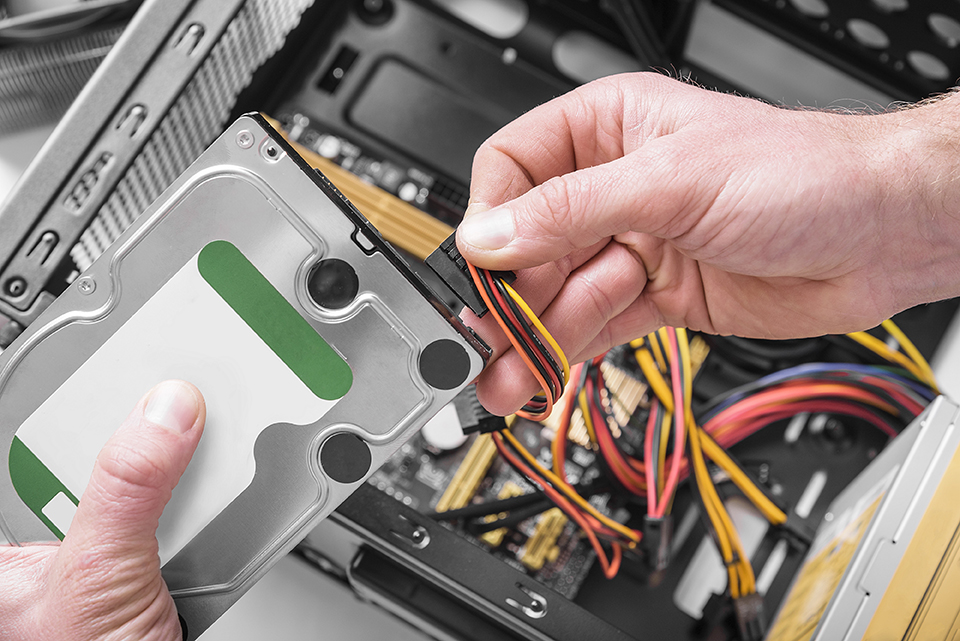
    Connect your SSD or HDD to the motherboard and power supply. For M.2 SSDs, insert them directly into the motherboard slot. For SATA drives, mount them in the drive bays and connect the SATA data and power cables.

    Install Storage
    Connecting storage drives to the motherboard.
  7. Install the GPU

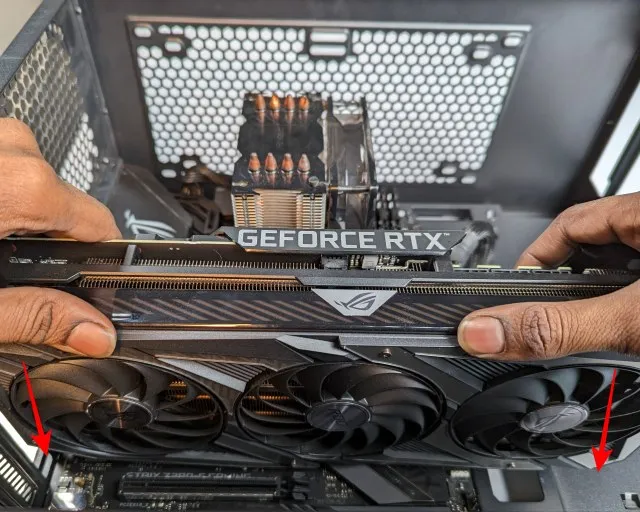
    Insert the GPU into the PCIe slot on the motherboard. Remove the corresponding case slot covers and secure the GPU with screws. Connect the necessary power cables from the power supply to the GPU.

    Install GPU
    Installing the GPU into the PCIe slot.
  8. Connect Power Supply

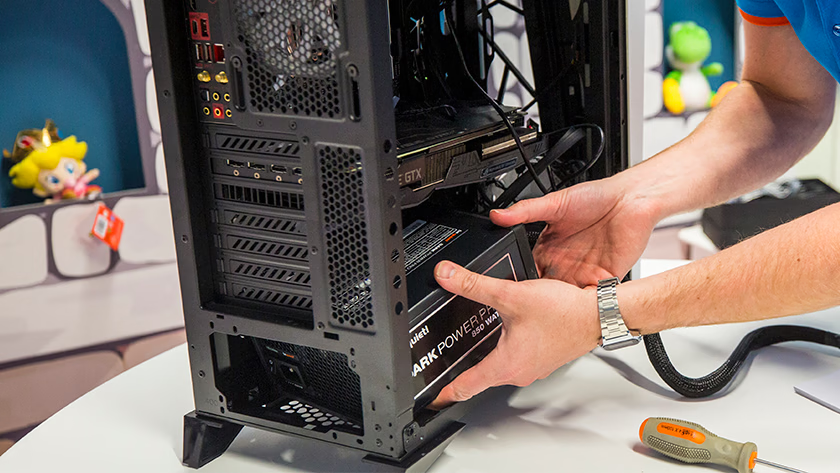
    Connect all necessary power cables to the motherboard, GPU, and storage devices. Route cables neatly to ensure good airflow and a clean look. Use cable ties to manage excess cables.

    Connect Power Supply
    Connecting power cables to the components.
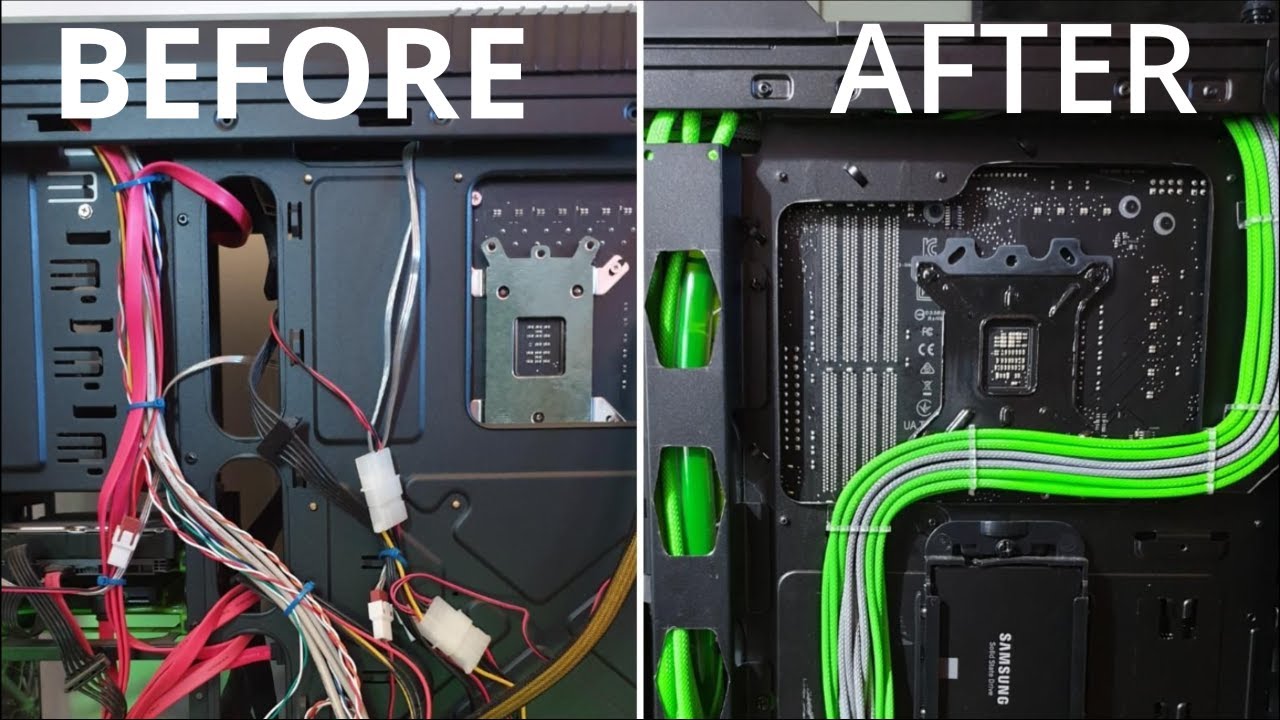
  9. Cable Management

    Organize and secure cables to ensure good airflow and a clean look. Use cable ties and routing holes in the case to keep cables out of the way. Proper cable management improves cooling and makes future upgrades easier.

    Cable Management
    Organizing cables for better airflow.
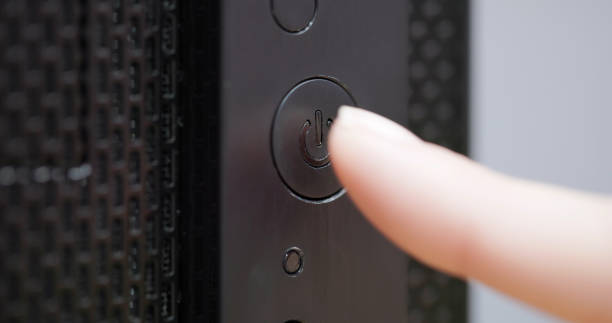
  10. Test and Boot

    Power on the PC and install the operating system. Enter the BIOS to ensure all components are recognized. Boot from a USB drive or installation disc to install your preferred OS (e.g., Windows, Linux). Install drivers and updates for optimal performance.

    Test and Boot
    Booting up the newly built PC.

When to Build

The best time to build a computer depends on various factors, including hardware release cycles and pricing trends. Here are some guidelines:

  • Post-New Year Sales: Many component manufacturers offer discounts after the holidays, making this a great time to grab deals.
  • Black Friday/Cyber Monday: The biggest sale event of the year offers substantial discounts on many computer parts.
  • Release Cycles: If you're aiming to build with the latest and greatest components, it's best to wait for major releases, which typically happen every 12-18 months for CPUs and GPUs.
When to Build
When is the best time to build your PC?